Docker Compose Tutorial: Run Multi-Container Apps with One File
What is Docker Compose #
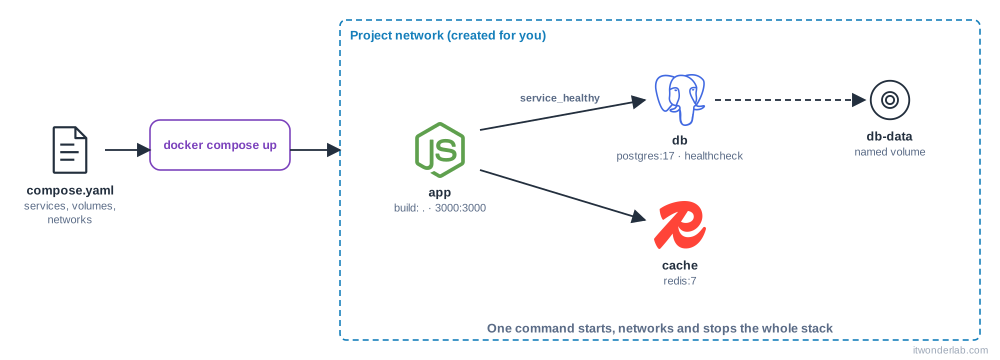
Docker Compose describes a multi-container application in one YAML file and manages it with one command. Instead of typing several docker network create, docker volume create and long docker run commands in the right order, you write what you want and run docker compose up.
Compose comes with Docker and with Rancher Desktop when you use the dockerd engine. With containerd, nerdctl compose reads the same file.
The project #
We reuse the Node.js application of the Dockerfile tutorial and add a database and a cache. Update server.js to count visits in Redis and store them in PostgreSQL if you wish; for this tutorial the infrastructure is what matters, so the application only needs to read two environment variables: DATABASE_URL and REDIS_URL.
myapp/
  compose.yaml
  Dockerfile
  server.js
  package.json
  .env
compose.yaml #
The file is named compose.yaml (or compose.yml, or the older docker-compose.yml). The top-level version: key is obsolete: do not write it.
services:
  app:
    build: .
    ports:
      - "3000:3000"
    environment:
      DATABASE_URL: postgres://app:${DB_PASSWORD}@db:5432/app
      REDIS_URL: redis://cache:6379
    depends_on:
      db:
        condition: service_healthy
      cache:
        condition: service_started
    restart: unless-stopped

  db:
    image: postgres:17
    environment:
      POSTGRES_USER: app
      POSTGRES_PASSWORD: ${DB_PASSWORD}
      POSTGRES_DB: app
    volumes:
      - db-data:/var/lib/postgresql/data
    healthcheck:
      test: ["CMD-SHELL", "pg_isready -U $${POSTGRES_USER} -d $${POSTGRES_DB}"]
      interval: 10s
      timeout: 5s
      retries: 5
      start_period: 30s

  cache:
    image: redis:7-alpine

volumes:
db-data:DB_PASSWORD=change-meCompose reads .env automatically and substitutes ${DB_PASSWORD}. Add .env to .gitignore.
What each part does:
build: .builds the image from the Dockerfile in this directory. Useimage:to pull a prebuilt one.- Networking: Compose creates a network for the project and every service joins it, reachable by its service name. The app connects to
db:5432andcache:6379. Onlyapppublishes a port. depends_onwithcondition: service_healthywaits until the healthcheck ofdbpasses, not just until the container has started. Without it your app often starts before the database accepts connections. The doubled$$stops Compose from interpolating the variable, so the shell inside the container expands it.volumes: the named volumedb-datakeeps the database between runs.
The everyday commands #
$ docker compose up -d --build      # create, build if needed and start in the background
$ docker compose ps
NAME            IMAGE         SERVICE   STATUS                    PORTS
myapp-app-1     myapp-app     app       Up 20 seconds             0.0.0.0:3000->3000/tcp
myapp-cache-1   redis:7...    cache     Up 25 seconds             6379/tcp
myapp-db-1      postgres:17   db        Up 25 seconds (healthy)   5432/tcp
$ docker compose logs -f app
$ docker compose exec db psql -U app -d app
$ docker compose stop               # stop, keep the containers
$ docker compose down               # remove containers and networks
$ docker compose down -v            # ...and volumes (deletes the data!)
After editing the Dockerfile or the code, docker compose up -d --build rebuilds and recreates only the changed services. To validate the file and see the final configuration with all variables substituted:
$ docker compose configConfiguration: environment and secrets #
environment:sets values inline.env_file: .env.apploads a whole file.- Variables like
${DB_PASSWORD}come from your shell or the.envfile. Use${VAR:-default}for a default and${VAR:?error message}to fail if it is missing. - For real secrets prefer Compose secrets, which mount a file under
/run/secrets/:
services:
  db:
    image: postgres:17
    environment:
      POSTGRES_PASSWORD_FILE: /run/secrets/db_password
    secrets:
      - db_password

secrets:
  db_password:
    file: ./db_password.txt
Profiles: optional services #
Services with profiles start only when you ask for them, which keeps the default stack small:
services:
  adminer:
    image: adminer
    ports:
      - "8081:8080"
    profiles: ["debug"]
$ docker compose up -d # without adminer
$ docker compose --profile debug up -d # with adminerOverride files: one base, many environments #
Compose merges compose.yaml with compose.override.yaml automatically. Keep the production-like definition in the first and your development tweaks (bind mounts, ports, debug) in the second. Use -f to choose files explicitly:
$ docker compose -f compose.yaml -f compose.prod.yaml up -dScale and limit #
$ docker compose up -d --scale app=3 # needs no fixed host port on the serviceservices:
app:
deploy:
resources:
limits:
cpus: "0.50"
memory: 256MCompose in production? #
Compose is excellent for development, CI and single-host deployments. To run containers on a cluster use Kubernetes (Kubernetes in Rancher Desktop, EKS) or a managed service such as ECS with Fargate. The docker compose config output and tools such as Kompose can help you migrate.
Next steps #
Edit code and see it running without rebuilding by hand: Docker Compose Watch.
Related tutorials
 Containers and Orchestration
Docker Compose
Docker Compose defines and runs multi-container applications from a single YAML file: services, networks and volumes started with one command.
- Docker & Rancher Desktop Tutorials
Install Redis with Docker: Persistence, Basic Commands and Caching
Run Redis in a container with a persistent volume and a password, learn the essential commands, key expiration and the cache-aside pattern, and check memory usage.
- Docker & Rancher Desktop Tutorials
Install Prometheus with Docker: Scrape Metrics and Write PromQL Queries
Run Prometheus in a container, scrape a Node Exporter and your own targets, learn the basic PromQL queries and create an alert rule you can test locally.