Docker Basics: Containers, Images and Registries Explained
What is Docker and why use it #
Docker packages an application with everything it needs (runtime, libraries, configuration) into an image, and runs that image as an isolated process called a container. The same image runs the same way on your laptop, in a CI pipeline and in production on ECS, Fargate or EKS.
This is the first tutorial of the series Docker and Rancher Desktop. It explains the concepts. The next ones install the tools and build real applications. Everything you learn here also applies to Rancher Desktop, the free tool we use in this series to run Docker and Kubernetes on a laptop.
Containers are not virtual machines #
| Virtual machine | Container | |
|---|---|---|
| What it virtualizes | Hardware: each VM boots its own kernel | The operating system: all containers share the host kernel |
| Start time | Seconds to minutes | Milliseconds to seconds |
| Size | GBs (a full OS) | MBs (your app and its libraries) |
| Isolation | Strong (hypervisor) | Good (kernel namespaces and cgroups) |
| Typical use | Different operating systems, strong tenant isolation | Packaging and running applications |
A container is a normal Linux process with a restricted view of the system. Namespaces give it its own process tree, network, mount points and hostname. Control groups (cgroups) limit the CPU, memory and I/O it can use. On macOS and Windows there is no Linux kernel to share, so tools such as Rancher Desktop run a small Linux virtual machine and the containers run inside it.
Images, layers and containers #
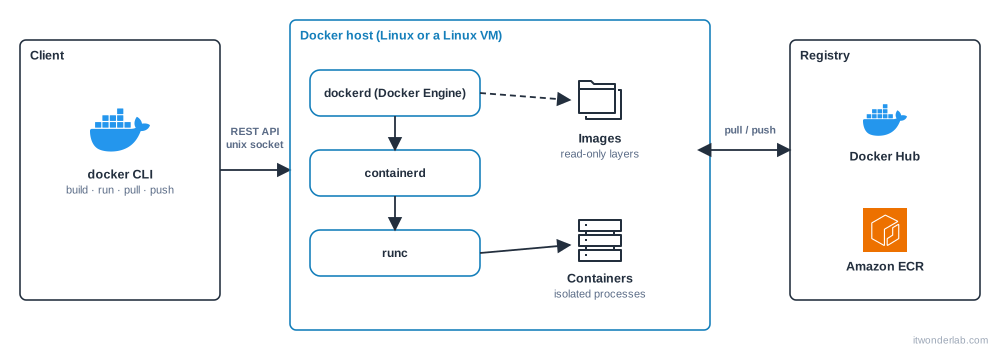
- An image is a read-only template: a stack of layers, each one the result of an instruction (add a file, install a package) plus metadata such as the default command.
- A container is a running (or stopped) instance of an image with a thin writable layer on top. Delete the container and that layer disappears.
- Layers are shared. If ten images start from the same
ubuntubase, that base is stored and downloaded once. - Images are identified by a tag (
nginx:1.27) and by an immutable digest (nginx@sha256:...). Tags can move, digests cannot.
Registries #
A registry stores and distributes images. Docker Hub is the default public one. Cloud providers offer private registries, such as Amazon ECR. An image name has the form registry/namespace/repository:tag. When you omit the registry, Docker uses Docker Hub, so nginx means docker.io/library/nginx:latest.
The Docker architecture #
The docker command is only a client. It sends requests over a socket to the Docker daemon (dockerd), which builds images, manages networks and volumes and delegates the running of containers to containerd, which in turn calls runc to create the isolated process. Because the client and the daemon are separate, the daemon can live in a virtual machine while you type commands on your desktop, which is exactly what happens in Rancher Desktop.
Your first containers #
Once Docker is available (the next tutorial installs it), check that the client and the daemon talk to each other:
$ docker version
$ docker run --rm hello-world
docker run pulls the image if it is not present, creates a container, starts it and prints its output. --rm deletes the container when it exits.
Run a web server in the background and publish its port:
$ docker run -d --name web -p 8080:80 nginx:1.27
$ curl -I http://localhost:8080
HTTP/1.1 200 OK
Server: nginx/1.27.x
-d runs it detached, --name gives it a name and -p 8080:80 maps port 8080 of your computer to port 80 of the container. See what is running, read its logs and stop it:
$ docker ps
$ docker logs web
$ docker stop web && docker rm web
Open a shell inside a throwaway Alpine container to see the isolation for yourself:
$ docker run -it --rm alpine:3.21 sh
/ # ps
PID   USER     COMMAND
    1 root     sh
    7 root     ps
/ # exit
Inside, your shell is process 1: the container cannot see the host processes.
Where to go next #
- Install Rancher Desktop to get Docker and Kubernetes on your computer.
- Learn the Docker CLI commands you will use every day.
- Write your first Dockerfile.
Related tutorials
- Docker & Rancher Desktop Tutorials
Install Podman on Linux: Rootless Containers as a Docker Alternative
Install Podman, run rootless containers, build images, use pods and volumes, create systemd services and move from Docker with the same commands.
 Containers and Orchestration
Docker
Docker is a platform to build, ship and run applications in containers: lightweight, isolated processes created from portable images.
 AWS Containers
AWS ECR
Amazon Elastic Container Registry (ECR) is a managed registry to store, scan and share Docker and OCI container images with ECS, EKS and Lambda.