Push Docker Images from Rancher Desktop to Amazon ECR
Why a registry #
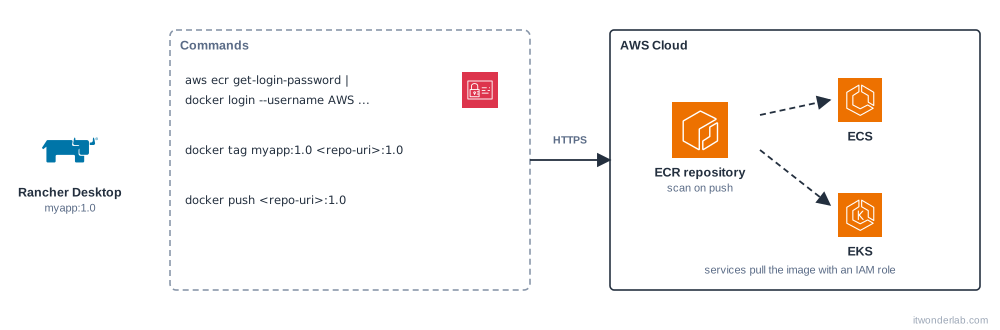
Images built on your laptop work for local development, but the rest of the world needs them in a registry: your ECS services, EKS nodes and CI pipelines pull from there. Amazon ECR is the private registry of AWS: it integrates with IAM, scans images and has no extra servers to run.
Prerequisites #
- Rancher Desktop installed and an image to push, such as
myapp:1.0from the Dockerfile tutorial. - The AWS CLI installed and configured, with credentials that can use ECR.
- Optional: Terraform or OpenTofu to create the repository as code.
Create the repository with Terraform #
resource "aws_ecr_repository" "app" {
  name                 = "myapp"
  image_tag_mutability = "IMMUTABLE"   # a pushed tag can never be overwritten

  image_scanning_configuration {
    scan_on_push = true
  }

  encryption_configuration {
    encryption_type = "KMS"            # use the AWS managed key for ECR; add kms_key for your own
  }
}

# Delete untagged images after 14 days to control the cost
resource "aws_ecr_lifecycle_policy" "app" {
  repository = aws_ecr_repository.app.name

  policy = jsonencode({
    rules = [{
      rulePriority = 1
      description  = "Expire untagged images after 14 days"
      selection = {
        tagStatus   = "untagged"
        countType   = "sinceImagePushed"
        countUnit   = "days"
        countNumber = 14
      }
      action = { type = "expire" }
    }]
  })
}

output "repository_url" {
  value = aws_ecr_repository.app.repository_url
}
$ terraform init
$ terraform apply
repository_url = "123456789012.dkr.ecr.us-east-1.amazonaws.com/myapp"Or with the AWS CLI:
$ aws ecr create-repository --repository-name myapp \
    --image-scanning-configuration scanOnPush=true --image-tag-mutability IMMUTABLE
Log in #
ECR does not use a permanent password. The AWS CLI gets a token valid for 12 hours and you give it to the engine:
$ REGISTRY=123456789012.dkr.ecr.us-east-1.amazonaws.com

# dockerd
$ aws ecr get-login-password --region us-east-1 | docker login --username AWS --password-stdin $REGISTRY
Login Succeeded

# containerd
$ aws ecr get-login-password --region us-east-1 | nerdctl login --username AWS --password-stdin $REGISTRYTag and push #
An image name must contain the registry address to be pushed there. Add a second name (a tag) to your image:
$ docker tag myapp:1.0 $REGISTRY/myapp:1.0
$ docker push $REGISTRY/myapp:1.0
With nerdctl the commands are the same: nerdctl tag ... and nerdctl push .... Check the result and the scan:
$ aws ecr describe-images --repository-name myapp
$ aws ecr describe-image-scan-findings --repository-name myapp --image-id imageTag=1.0
Build for the right architecture #
If your laptop is an Apple Silicon Mac and your cluster or Fargate tasks run on amd64 (or the opposite), an image built for the wrong architecture fails at start with exec format error. Build for the target platform, or for both:
$ docker buildx build --platform linux/amd64 -t $REGISTRY/myapp:1.0 --push .The BuildKit tutorial explains multi-platform builds.
Pull from ECS and EKS #
- ECS and Fargate: the task execution role must be allowed to pull. Attach the AWS managed policy
AmazonECSTaskExecutionRolePolicyand use the full image URI in the task definition. See ECS with Terraform and Fargate. - EKS: the node IAM role needs
AmazonEC2ContainerRegistryReadOnly, or the equivalent permissions for pods that use IAM roles. See EKS with Terraform.
Permissions to push #
A user or CI role that only pushes needs these actions (and ecr:GetAuthorizationToken on all resources):
{
  "Effect": "Allow",
  "Action": [
    "ecr:BatchCheckLayerAvailability",
    "ecr:InitiateLayerUpload",
    "ecr:UploadLayerPart",
    "ecr:CompleteLayerUpload",
    "ecr:PutImage"
  ],
  "Resource": "arn:aws:ecr:us-east-1:123456789012:repository/myapp"
}
For automated pushes, use a role from your pipeline with OIDC instead of access keys, as in Terraform with GitHub Actions and AWS OIDC.
Clean up #
$ docker logout $REGISTRY
$ terraform destroy        # or: aws ecr delete-repository --repository-name myapp --force
Next steps #
Manage Docker resources as code with the Terraform Docker provider.
Related tutorials
 Containers and Orchestration
Rancher Desktop
Rancher Desktop is a free open source app with a container engine (containerd or dockerd) and a local K3s Kubernetes cluster for Linux, macOS and Windows.
 AWS Containers
AWS ECR
Amazon Elastic Container Registry (ECR) is a managed registry to store, scan and share Docker and OCI container images with ECS, EKS and Lambda.
 CI/CD and GitOps
LocalStack
LocalStack is a local emulator of AWS services that runs in a container, so you can test Terraform and applications without an AWS account.