Docker Networking Explained: Bridge Networks, Ports and DNS
How containers talk to each other #
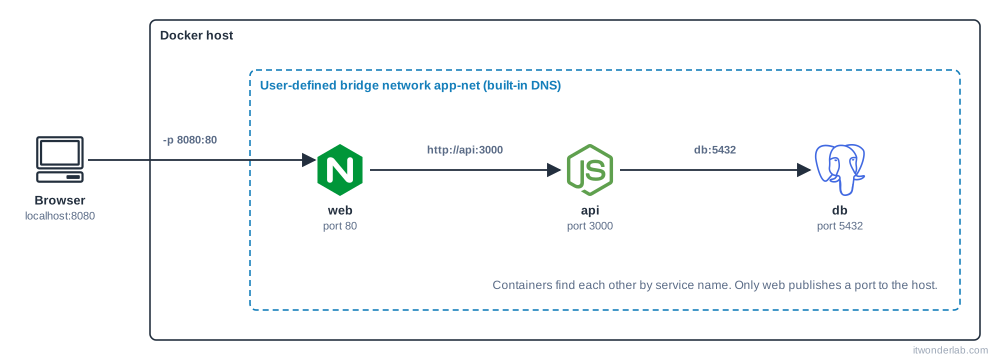
Every container gets its own network stack: its own IP address, routing table and ports. Docker connects containers through networks. You rarely need to know IP addresses: containers on the same user-defined network find each other by name.
Network drivers #
| Driver | What it does |
|---|---|
bridge |
The default. A private virtual network on the Docker host. Containers can reach the outside through NAT. |
host |
The container shares the network of the host: no isolation, no port mapping. Inside Rancher Desktop the "host" is the Linux VM, not your computer. |
none |
No network except loopback. |
overlay |
Connects containers across several hosts (Swarm). |
macvlan |
Gives the container its own MAC address on your physical network. |
The default bridge vs a user-defined bridge #
Containers started without --network join the default bridge, where they can reach each other only by IP address. Create your own network and you get automatic DNS, better isolation and the ability to connect and disconnect containers while they run.
$ docker network create app-net
$ docker run -d --name db  --network app-net -e POSTGRES_PASSWORD=secret postgres:17
$ docker run --rm --network app-net postgres:17 \
    psql -h db -U postgres -c "SELECT 'it works' AS result;"
The second container reaches the first one with the hostname db: Docker's embedded DNS resolves container names (and, in Compose, service names) on user-defined networks.
Publishing ports #
Containers are not reachable from outside the network by default. -p (or --publish) maps a port of the host to a port of the container:
$ docker run -d --name web -p 8080:80 nginx:1.27          # all interfaces
$ docker run -d --name web2 -p 127.0.0.1:8081:80 nginx:1.27   # only your computer
$ docker run -d -P nginx:1.27                              # random host port for each EXPOSE
$ docker port web
80/tcp -> 0.0.0.0:8080Ports below 1024 on Linux #
Rancher Desktop on Linux cannot publish ports below 1024 (such as 80 or 443) unless you allow it:
$ sudo sysctl -w net.ipv4.ip_unprivileged_port_start=80Add it to /etc/sysctl.d/ to make it permanent.
Connect and inspect #
$ docker network ls
$ docker network inspect app-net            # subnet, gateway and connected containers
$ docker network connect app-net web        # add a running container to a network
$ docker network disconnect app-net web
$ docker inspect -f '{{range .NetworkSettings.Networks}}{{.IPAddress}}{{end}}' web
A container can be on several networks. A frequent pattern is a frontend network for the proxy and the app and a backend network for the app and the database, so the proxy can never reach the database.
$ docker network create --internal backend # no access to the outside world at allDebugging connectivity #
Most problems are one of these:
- "Connection refused" from the host: the port is not published (
docker port) or the application listens only on127.0.0.1inside the container. Bind it to0.0.0.0. - Name does not resolve: the containers are not on the same user-defined network. The default bridge has no DNS.
- Works with the IP but not with the name: you are on the default bridge.
localhostinside a container: it is the container itself, not your computer. To reach a service on your computer from a container usehost.docker.internal(available in Docker Desktop and Rancher Desktop) or the IP of the host.
Use a tool container that shares the network of the failing one:
$ docker run --rm -it --network container:web nicolaka/netshoot
# inside: ping db, nslookup db, curl -v http://api:3000, ss -tlnp
DNS and proxies #
Containers inherit the DNS configuration of the daemon. In a corporate network with a proxy, configure it in the engine and not in every Dockerfile. Rancher Desktop can pass the proxy settings of the host to the VM, and the Windows version supports domain names and wildcards in its no-proxy list. See troubleshooting.
Next steps #
Define networks, volumes and services in one file with Docker Compose.