Kubernetes in Rancher Desktop: Run Your Local Images on K3s
Kubernetes on your laptop #
Rancher Desktop runs K3s, a lightweight and certified Kubernetes distribution, inside its Linux VM. You get a real single-node cluster to test manifests, Helm charts and operators, without a cloud account and without a registry for your own images.
Kubernetes preferences #
Open Preferences > Kubernetes:
- Enable Kubernetes: switch the cluster on or off. With it off only the container engine runs, which saves CPU and memory. Existing resources are kept.
- Kubernetes version: pick the version from the list. Upgrading keeps your workloads and images. Downgrading removes the workloads but keeps the images. Choose the version that matches your production cluster (for example EKS).
- Kubernetes port: change it if you run several K3s instances at once.
- Enable Traefik: the ingress controller that comes with K3s. Turn it off to free ports 80 and 443 for another controller.
Check the cluster. Rancher Desktop adds a rancher-desktop context to your kubeconfig:
$ kubectl config use-context rancher-desktop
$ kubectl get nodes
$ kubectl get pods -A
Run an image you built locally #
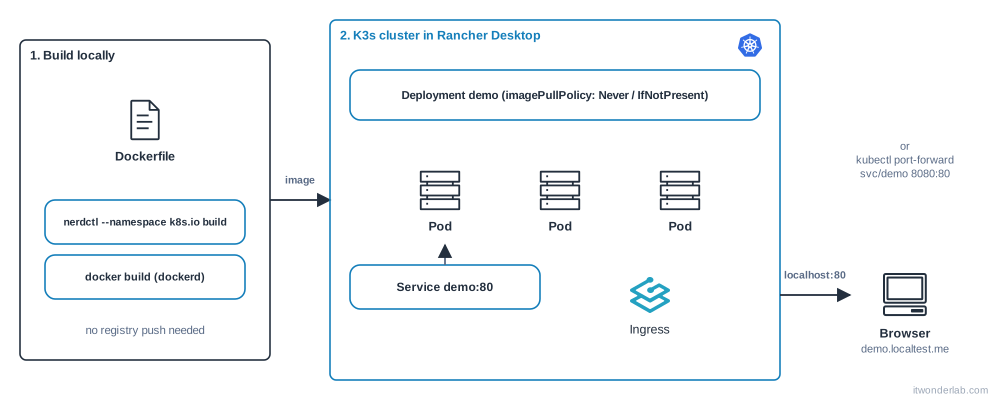
The goal: build an image on your laptop and deploy it without pushing it anywhere. The way depends on the container engine you chose in the previous tutorials.
Use the application from the Dockerfile tutorial and build it with a version tag:
# containerd: build in the namespace that Kubernetes uses
$ nerdctl --namespace k8s.io build -t demo:1.0 .

# dockerd: the cluster sees the images built by docker
$ docker build -t demo:1.0 .
Create a manifest. Note imagePullPolicy: IfNotPresent: with the latest tag (or no tag) Kubernetes tries to pull from a registry and fails with ImagePullBackOff, so always use a real tag.
apiVersion: apps/v1
kind: Deployment
metadata:
  name: demo
spec:
  replicas: 2
  selector:
    matchLabels:
      app: demo
  template:
    metadata:
      labels:
        app: demo
    spec:
      containers:
        - name: demo
          image: demo:1.0
          imagePullPolicy: IfNotPresent
          ports:
            - containerPort: 3000
          readinessProbe:
            httpGet:
              path: /
              port: 3000
---
apiVersion: v1
kind: Service
metadata:
  name: demo
spec:
  selector:
    app: demo
  ports:
    - port: 80
      targetPort: 3000
$ kubectl apply -f demo.yaml
$ kubectl get pods -l app=demo
NAME READY STATUS RESTARTS AGE
demo-6d9c7f5b8d-4k2xw 1/1 Running 0 15s
demo-6d9c7f5b8d-q7z9m 1/1 Running 0 15sWhen you change the code, build a new tag (demo:1.1), update the image: and apply again. Kubernetes performs a rolling update.
Expose it with Traefik #
K3s installs Traefik as the ingress controller, listening on ports 80 and 443 of the VM, which Rancher Desktop forwards to localhost. Add an Ingress:
apiVersion: networking.k8s.io/v1
kind: Ingress
metadata:
  name: demo
spec:
  ingressClassName: traefik
  rules:
    - host: demo.localtest.me
      http:
        paths:
          - path: /
            pathType: Prefix
            backend:
              service:
                name: demo
                port:
                  number: 80
$ kubectl apply -f ingress.yaml
$ curl http://demo.localtest.me/
Hello from demo-6d9c7f5b8d-4k2xwlocaltest.me is a public domain whose names all resolve to 127.0.0.1, so you can use host-based ingress rules without editing /etc/hosts. On Linux, publishing port 80 needs sudo sysctl -w net.ipv4.ip_unprivileged_port_start=80, as explained in the installation tutorial.
Without ingress: port-forward #
$ kubectl port-forward svc/demo 8080:80
$ curl http://localhost:8080
The Port Forwarding tab of Rancher Desktop lets you do the same from the UI and keeps the forwards when you restart.
Use NGINX instead of Traefik #
Turn off Traefik in the Kubernetes preferences, then install the NGINX ingress controller with Helm:
$ helm upgrade --install ingress-nginx ingress-nginx \
    --repo https://kubernetes.github.io/ingress-nginx \
    --namespace ingress-nginx --create-namespace
$ kubectl create ingress demo --class=nginx --rule="demo.localtest.me/*=demo:80"
$ kubectl port-forward --namespace=ingress-nginx service/ingress-nginx-controller 8080:80
Then open http://demo.localtest.me:8080/.
Useful details #
- Helm and
kubectlcome with Rancher Desktop. Install charts as in the Helm tutorial or from code with the Terraform Helm provider. - Deploy with GitOps: install Argo CD on the cluster and practice with a repository.
- Storage: K3s includes a local-path provisioner, so
PersistentVolumeClaimobjects work out of the box. For NFS see Kubernetes NFS. - WebAssembly: an experimental option installs the Spin operator for Wasm workloads when Wasm support is enabled.
- Start clean: Troubleshooting > Reset Kubernetes (in the Rancher Desktop window) recreates the cluster and removes the workloads.
Next steps #
- Moving a Compose application to the cluster: Convert Docker Compose to Kubernetes.
- Push the image to a real registry: Push images to Amazon ECR.
Related tutorials
 Containers and Orchestration
Rancher Desktop
Rancher Desktop is a free open source app with a container engine (containerd or dockerd) and a local K3s Kubernetes cluster for Linux, macOS and Windows.
- Docker & Rancher Desktop Tutorials
Install Traefik with Docker: Reverse Proxy with Automatic Routing
Run Traefik v3 with Docker Compose, route several containers by hostname with labels, add the dashboard, middlewares and automatic Let's Encrypt certificates.
- Kubernetes Tutorials
Create a Local Kubernetes Cluster with kind: Multi-Node, Ingress and Local Images
Install kind, create a multi-node Kubernetes cluster in Docker with port mappings, deploy an app, load local images without a registry and delete the cluster.